 NexScrm官方博客
First, Distinguish Two Mechanisms: Greeting Message Is Not Keyword Auto-Reply
When foreign trade customer service teams configure automated messages, they often confuse "greeting messages" and "keyword auto-replies." In fact, these are two independent trigger mechanisms:
Greeting Message is triggered automatically when a customer initiates a conversation for the first time or contacts again after a period of inactivity, without needing to identify chat content. Each platform has different criteria for "first time" and "interval."
Auto-response requires the system to recognize the content of the customer's message in real time, match it against a preset keyword library, and automatically send the corresponding reply. The native support for this capability varies completely across WhatsApp, Telegram, and LINE.
Below, we explain configuration entry points, trigger conditions, and practical limitations for each platform.
WhatsApp Business: Strict Greeting Trigger Conditions + Semi-Automatic Quick Replies
Greeting Message Configuration and Trigger Rules
WhatsApp Business natively supports Greeting Message. The setup path is: Open WhatsApp Business App → Go to Business Tools → Select Greeting message → Enable and edit content.
Trigger conditions are strictly limited to two cases:
- Customer initiates a conversation for the first time — meaning the contact messages you for the first time
- No interaction for over 14 days after the previous conversation, then messages again — the system uses 14 days as the silent period threshold, after which it treats it as the start of a new conversation
You can filter recipients when configuring:
- Send to everyone
- Send only to contacts not in your address book
- Exclude specific contacts
- Send only to specific contacts
Note two prerequisites:
- Your device must be online; offline, the greeting will not be sent
- If the account is connected to Meta Business Agent (e.g., WhatsApp Business Platform API), native greeting messages are automatically disabled and managed uniformly by the API layer
WhatsApp Does Not Support True Keyword Auto-Reply
Many teams mistakenly think WhatsApp's Quick Replies are a keyword auto-reply feature, but it is actually a semi-automatic manual template call.
The process: The agent types "/" in the chat input box → selects a preset shortcut from the pop-up menu → manually clicks send. The system does not automatically recognize customer message content and match replies; all operations require human intervention.
Setup path: Business Tools → Quick Replies → Create or edit template → Set shortcut and reply content.
Limitations of native quick replies:
- On WhatsApp Web or desktop, quick replies cannot attach media files (images, videos, documents, etc.); only plain text can be sent
- For standardized messages with mixed text and images, you need to manually copy and paste each time or use third-party tools
Telegram Business: Greeting Can Set Silent Period, Complex Rules Need Bot Integration
Greeting Configuration and Silent Period Parameters
Telegram Business now supports official Greeting Messages. The trigger mechanism is similar to WhatsApp, but the silent period is customizable:
- Triggered on first private chat
- Triggered on private chat after silent period — optional 7, 14, 21, or 28 days of inactivity before resetting
The greeting content must be bound to a Quick Reply Shortcut ID, meaning you need to first create the corresponding template in your quick reply library.
Configuration path: Telegram account settings → Business Settings → Greeting Messages → Select silent period parameter → Bind Quick Reply.
Boundaries Between Quick Replies and Keyword Automation
Telegram's quick replies also require manual invocation; they are essentially a preset message library and will not automatically match and send based on specific words the customer sends.
If your business needs precise matching rules like "customer sends 'price' → auto-reply with price list" or "customer sends 'business hours' → auto-reply with schedule," you need to integrate a Telegram Bot or use a third-party workbench system that supports custom keyword libraries.
LINE Official Account: Native Support for True Keyword Auto-Reply
LINE offers the most complete automation support among the three platforms. It provides two independent mechanisms:
1. Greeting Message
Automatically sent when a user adds your LINE Official Account as a friend. Key features:
- Does not consume broadcast quota — LINE Official Account has a monthly free message limit for broadcasts, but greetings are billed separately and do not consume quota
- Triggered only once, when the user first adds you
Configuration path: LINE Official Account Manager → Auto-response messages → Greeting message → Enable and edit content.
2. Auto-response Messages
LINE natively supports keyword-based auto-reply. Configuration path:
LINE Official Account Manager → Auto-response messages → Create new rule → Set keyword trigger → Edit reply content (can include text, images, cards, and other rich media).
Matching rules can be set to:
- Exact match (customer message exactly matches keyword)
- Contains match (keyword appears in customer message)
You can configure multiple reply contents for the same keyword, and the system will randomly select one to send, avoiding a too-robotic feel.
Note on priority: If multiple keyword rules are configured and a customer message matches several, the system selects the one created first.
Multi-Account Matrix Scenarios: Three Management Blind Spots of Native Settings
When a team operates more than 10 WhatsApp, Telegram, and LINE accounts, relying on each platform's native backend for one-by-one configuration leads to these problems:
1. Inconsistent Messages, Version Chaos
Each agent maintains their own version in the quick reply library of different accounts, and answers to the same question gradually diverge. When the company adjusts product policies or pricing, it's impossible to confirm which accounts have been updated and which haven't.
2. Translation Disconnect for Multilingual Customers
Native quick replies can only store a single language version. When facing Spanish, Arabic, or Japanese customers, agents either switch between multiple template libraries or temporarily translate and send manually, unable to ensure terminology consistency and translation accuracy.
3. No Cross-Platform Unified Keyword Library Maintenance
A LINE account has 50 keyword rules configured, while a WhatsApp account relies on agents manually calling quick replies from memory, and a Telegram account needs a separate Bot integration. The same business logic must be implemented repeatedly across three systems.
Unified Configuration Solution for Multi-Account Scenarios
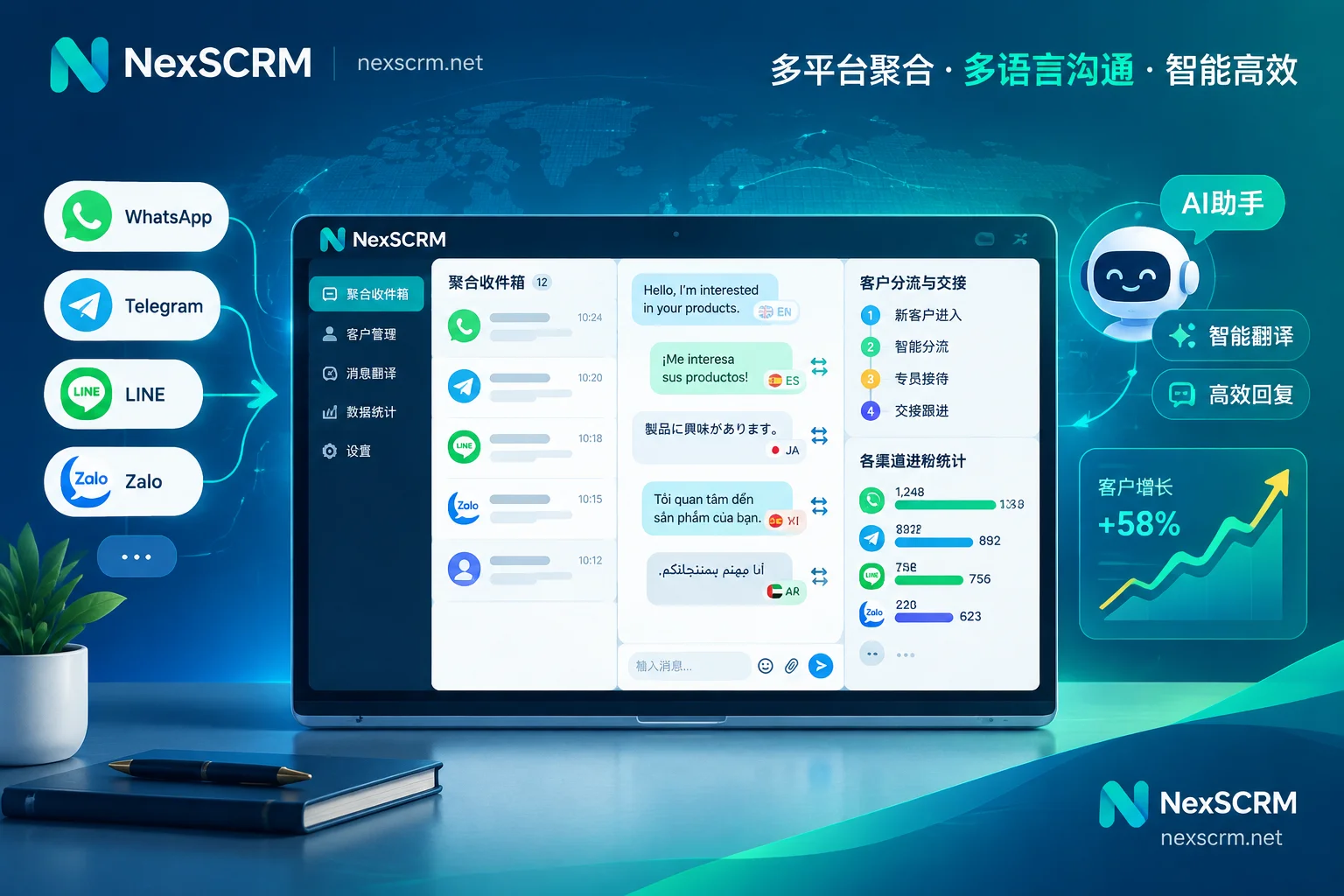
In business scenarios that aggregate multiple platforms and accounts for cross-language customers, a desktop SCRM workbench can solve the above management blind spots.
Take NexSCRM as an example. It supports:
Centralized keyword auto-reply library: Set keyword trigger rules and corresponding messages in a unified backend, and all connected WhatsApp, Telegram, and LINE accounts share the same logic. When a customer sends a matching word, the system automatically sends the preset content, eliminating repetitive maintenance across native backends.
Quick message template library: Create standardized message templates that team members can quickly invoke in any account's chat window. When template content is updated, all accounts sync in real time, preventing version chaos.
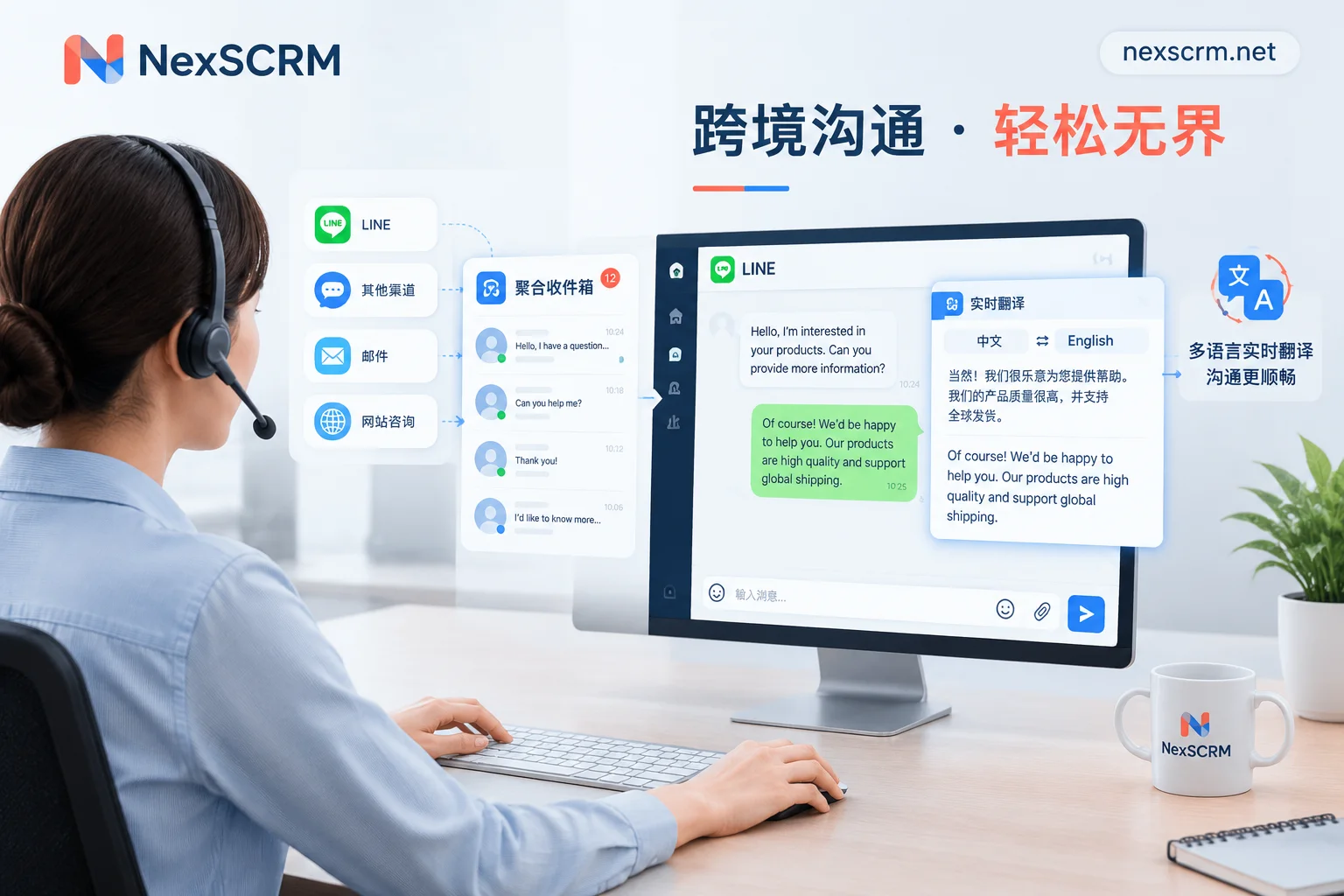
Real-time two-way translation: When a customer sends a foreign-language message, the system automatically translates it into Chinese for the agent; when the agent replies in Chinese, the system automatically translates it into the customer's language and sends it. Both original and translated text are retained in the chat history, with support for switching between multiple translation routes. This means quick messages only need to be maintained in Chinese and are automatically translated based on the customer's language when sent.
AI greeting and reply suggestions: When a new customer comes in, the system automatically generates a personalized opening message based on the customer profile; during the conversation, AI analyzes the context in real time and recommends suitable reply content, which the agent can send with one click after confirmation.
Prerequisites for this solution:
- Accounts need to log in to a desktop client that supports independent fingerprint environments and session-level proxies
- Translation capability relies on real-time calls to translation routes, requiring a stable network environment
- Keyword libraries and message templates need to be pre-entered and permissions assigned by an administrator
For specific port billing rules, version feature differences, and free trial conditions, visit the NexSCRM pricing page.
Decision Checklist Before Configuration
Finally, here's a checklist to help you decide whether to use native settings or need a workbench system:
Conditions for choosing native settings:
- Fewer than 5 accounts
- All customers use the same language
- Fewer than 20 message templates and low update frequency
- Only need greeting messages, no complex keyword matching rules
Signals you need a workbench system:
- Operating more than 10 accounts with a customer service team of more than 3 people
- Customers from multiple language regions, requiring real-time translation
- Keyword library exceeds 50 entries and needs cross-platform reuse
- Need to monitor agent message usage or uniformly update standard replies
- Need to integrate chat history with customer profiles, follow-up reminders, and other data
Choose the configuration method that matches your actual business scale and management needs. During the single-account trial stage, native backends are sufficient; when entering the multi-account matrix and team collaboration stage, unified message management and translation capabilities become essential.


Comments(0)