 NexScrm官方博客
A customer suddenly asks, "Is the price you quoted for that 20-foot container last time still valid?" You spend five minutes scrolling through chat history and can't find it. This happens every day, but the first step to solving it isn't frantic scrolling—it's determining one thing: Are you searching within a single person, all conversations on this device, or all company accounts? These three scopes require completely different actions, and mixing them up will waste your time.
Determine the Scope First, Then Act
- You know who said it: Search within that conversation, combined with date filtering—fastest.
- You remember the content but not who said it: Use the global search at the top of the client.
- You can't recall which account received it, or a colleague handled it at the time: Native clients can't do this; you need to search in an aggregated workbench or cloud backup—more on that later.
How to Use Native Search on Each Platform
WhatsApp offers two paths.
Global search: Enter a phrase in the search box at the top of the Chats tab, and it will search across conversations. The results page can be filtered by type—photos, videos, links, documents, audio, polls can be filtered individually. Finding "the product image the customer sent" or "the URL he shared" is much faster by switching to the corresponding type than scrolling through text.
In-chat search: Open a single chat or group, tap the three-dot menu in the top right and select Search, enter a keyword and jump to each occurrence. There's also an easily overlooked feature—tap the calendar icon (Search by date) to jump directly to a specific date. If you remember "it was around the end of last month," jumping by date is more accurate than searching by word.
Desktop and web have shortcuts: In-chat search is Ctrl+Alt+Shift+F, extended global search is Alt+K. Customer service reps who check records a dozen times a day can save a lot of time by memorizing these two keys.
Telegram
Telegram's advantage is that full-text search is done in the cloud, not dependent on local cache—you can still find early messages when logging in on a new device.
Enter a keyword in the general search box at the top of the main interface, and it will search across private chats, groups, and channels. After results appear, use Search Filters to switch categories: chats, media, links, files, etc., and further narrow by sender or date. In a large group, finding something a specific customer said—select the sender first, then enter the keyword—is much cleaner than pure text search.
You can also search within a single chat via the search box in the conversation options menu. Once found, you can view the context directly, which is more useful for verifying the context around a quote than a global search results list.
LINE
LINE has a search bar at the top of the Chats list for global search; inside a specific chat window, tap the magnifying glass icon in the top right for in-chat search.
One official detail worth noting: Search keywords should be at least 2 characters; single-character results are inaccurate. This is significant in Japanese customer communication—a single kanji or kana rarely hits the desired result, so use phrases. In-chat search also supports date-based lookup with the calendar.
Zalo
Zalo's desktop and mobile versions also provide search entry points in the conversation list and within individual conversations, with logic similar to the above: top search box for global, in-chat search for precise location. However, some pages of Zalo's official help documentation have regional access restrictions, and I haven't found directly citable official statements on how long multi-device message sync is retained or what search syntax the desktop supports. For teams doing business in Vietnam, it's advisable not to rely solely on in-app search for important conversations—keep a separate backup.
How to Choose Keywords: Hit Rate Varies Greatly
Often, not finding something isn't a search function problem—it's choosing the wrong keyword.
Prioritize unique strings. Order numbers, PI numbers, tracking numbers, model SKUs, monetary amounts—these are almost never repeated in the entire chat database, so a search hits exactly. Searching high-frequency words like "price" or "shipping" returns hundreds of results, which is as good as no search.
Search the customer's exact words, not your mental summary. You remember it as "he wants it expedited," but the customer actually wrote urgent, rush, or ASAP. When you can't recall the exact words, using date-based location is more reliable.
Numbers are more stable than adjectives. A quote of 3.85, quantity 5000, lead time 25 days—such specific numbers usually appear only in the segment you're looking for.
In multilingual scenarios, search again in another language. If the customer wrote in Spanish, Arabic, or Portuguese, searching with Chinese keywords will never find it. If you're looking for what the customer said, search in their language; if you're looking for what you sent, search in the language you used at the time.
Three Situations Where Native Search Really Fails
1. Cross-Account Search Fails
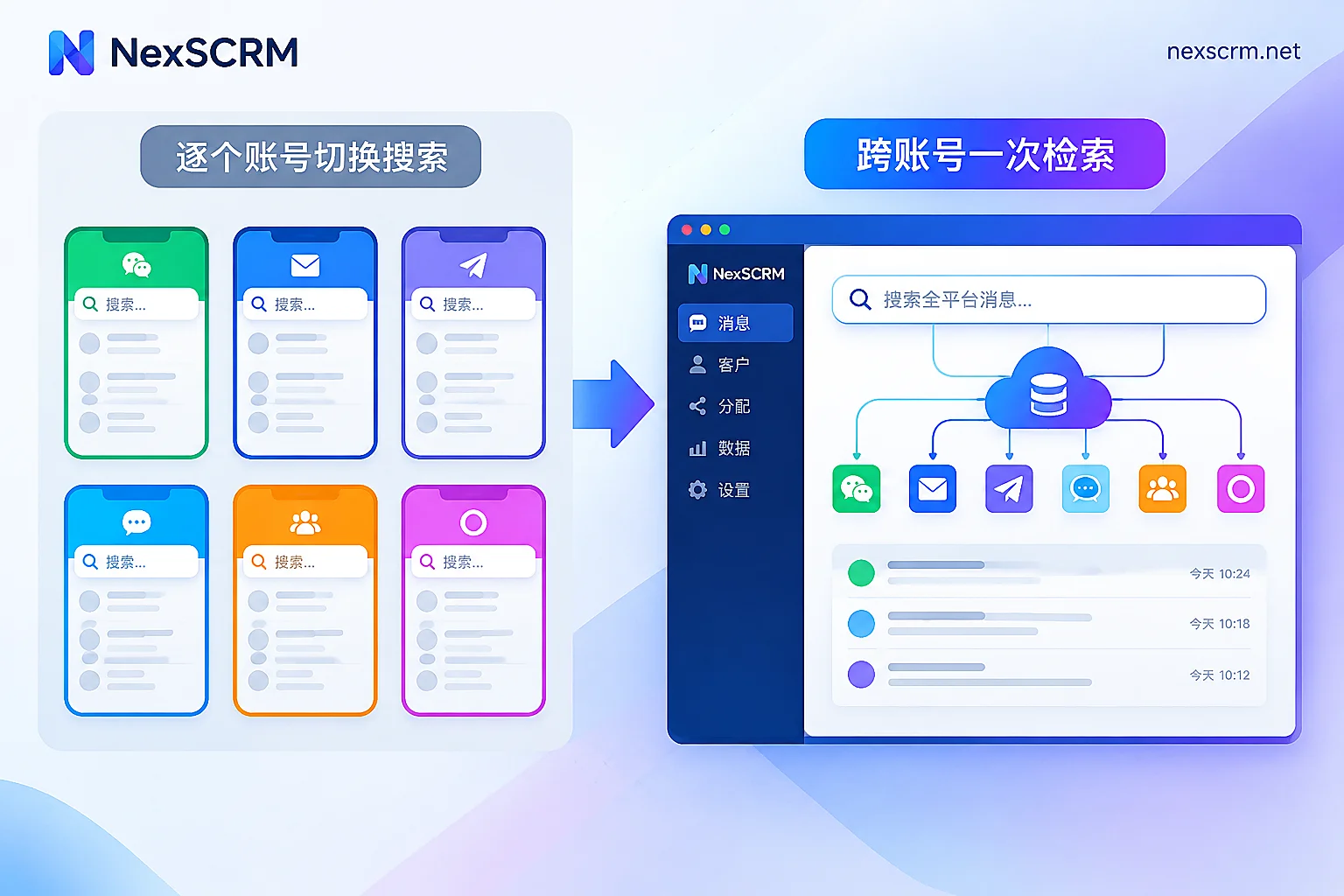
The team has dozens of accounts, and over time no one remembers which account the customer originally came through. Native clients can only search the currently logged-in account, so to find an order number, you have to log into each account and search one by one. The more accounts, the more impossible this becomes.
2. Cross-Language Misses
If a translation tool only displays the translation without keeping the original, or vice versa only stores the original, your keyword coverage is missing half. The customer sent "necesito el precio FOB," and later you search in Chinese for "FOB quote"—you'll find nothing. Both the original and translation of the same conversation must be stored so that both languages can hit.
3. Records Follow the Device
Locally stored chat history gets disconnected when an employee leaves, changes phones, or reinstalls the system. The colleague taking over sees only a contact and a few recent messages; any previously negotiated terms, promised discounts, or complaints must be asked again from scratch. Customer patience usually doesn't survive a second round of repeated questions.
Elevate Search Scope Above Accounts
The first two situations can't be solved by personal techniques; you need to move messages out of individual devices and accounts. The approach is to use an aggregated workbench to send and receive across multiple platforms and multiple accounts simultaneously, with all conversations in one database, so you can search by keyword all at once without switching accounts.
NexSCRM's approach is exactly this: Multi-account aggregation brings multiple accounts from WhatsApp, Telegram, LINE, Zalo, and other platforms into one workbench, with each account maintaining an independent fingerprint environment; Cloud backup and search of chat history stores conversations in the cloud, so historical context remains even after personnel changes or device switches. When managers need to review the ins and outs of a quote or a work order, they can locate it directly by order number or keyword.
For the cross-language layer, the key is how translation results are stored. If real-time two-way translation retains both the original and the translation (text, images, and voice all preserved), then the same conversation can be found under both Chinese and the customer's native language keyword sets, and you can directly compare the original words during verification, avoiding translation deviations being mistaken for the customer's actual requirements.
Make Future Records Easier to Search
Half of search capability comes from daily recording habits. A few low-cost but high-return practices:
- Include the reference number in the conversation when quoting. Even if the system already has the order number, add a line like "PI No. XXXX, USD 3.85/pc" in the chat—later a search by number will find it instantly.
- Use a fixed format for key milestones. Send shipping, price change, and complaint messages using a unified template so the format is consistent, keywords are consistent, and search results are clean.
- Tag customers instead of renaming them. A remark name can only be viewed, but tags can be filtered, and combined with search they quickly narrow the scope. For methods, refer to How to tag and segment customers in Telegram.
- Before handover, organize the context into a searchable form. Who takes over, what stage the negotiation was at—put it in work orders and records, not just verbal instructions. If this step is done poorly, searching records later is like archaeology. For the specific process, see How to share WhatsApp chat history and accumulate customer assets within a team.
One final reminder: search entry points, filters, and shortcuts on different platforms change with versions; this article describes the operation paths in the current official help documentation. If you can't find a button following the steps, first confirm your client version, then check the corresponding platform's official help page—platform announcements are more reliable than third-party tutorials.




Comments(0)