 NexScrm官方博客
When running a LINE official account, you often encounter this situation: you want to promote a new product, but your list includes customers who have already purchased, people who haven't opened messages in a long time, and buyers who don't purchase this category at all. To make segmented broadcasts more precise, even detailed attribute selection has limited effect. The key lies in these three things:
- Use "filter by attribute" only for coarse screening, such as region or mobile OS;
- Use "filter by audience" to target people based on real behavior and business tags, such as who clicked which link or what stage they are tagged at in chat;
- Set both "include" and "exclude" in the same message to block out those who have already purchased, are blacklisted, or are irrelevant.
The following is organized in the actual setup order, based on the LINE Official Account Manager backend.
First Confirm Three Thresholds, Otherwise Even with Conditions Set You Can't Send
- Attribute filtering is only available after reaching 100+ friends. If you haven't reached this number yet, first work on your friend-adding entry points and welcome message. You can refer to How to Increase LINE Official Account Friends.
- After filtering, the estimated effective recipient count usually needs to be 50 or more to send. The more conditions you stack, the faster the number drops. "Set up but can't send" is mostly due to this reason.
- Attribute data is not real-time; the system may take up to about 3 days to reflect it. Friends added just two days ago may not yet appear in the list when filtering by attributes today. For messages aimed at new friends, don't rely on attribute filtering.
Also, the available information mainly comes from accounts in the Taiwan region. Official accounts opened in other countries or regions may have different levels of audience feature availability. If you can't find a certain audience type in the backend, first check LINE's official documentation for your region; don't assume the feature definitely exists.
Two Filtering Paths and What Each Handles
Filter by Attribute: Suitable for Coarse Segmentation
This dimension is provided by the system: time of joining as friend, gender, age (in 5-year brackets), mobile OS (iOS/Android), and residential region (in Taiwan, can be broken down to 22 counties/cities).
These attributes are estimated by the system, not filled in by customers, and cannot show what customers want to buy or what stage they are at. It is suitable for coarse segmentation directly related to attributes, such as offline events held only in certain counties/cities, or feature descriptions that only support one mobile OS.
Filter by Audience: Precision Mainly Comes from Here
Audiences are lists accumulated based on users' actual interactions. The natively supported types and common uses are as follows:
| Audience Type | How the List Is Formed | Suitable For |
|---|---|---|
| Click retargeting | Clicked a link in a previous broadcast message | People interested in a product; follow up with specs and pricing |
| Impression retargeting | Opened a previous broadcast message | Combine with click audience to find "saw but didn't click" people |
| Chat tag audience | Tags applied to users in one-on-one chats | Push by business stage, e.g., quoted, sample sent |
| Join path audience | Joined via a specific channel, QR code, or link | Distinguish friends from exhibitions, website, ads, etc. |
| Website traffic audience | Visitors tracked after installing LINE Tag on website | People who viewed a specific product page |
| User ID (UID) upload | Upload user IDs to build a list | Teams with existing system lists can import and use directly |
These two paths can be used alone or combined. When combined, it's an intersection—meaning both attribute and audience conditions must be met—so the number will be smaller than using either alone.
Setup Steps
Step 1: Build audiences in advance. Each audience type has prerequisites; it's best to prepare them before you want to send a message:
- Click and impression retargeting require a previous broadcast message as a base;
- Chat tag audiences require customer service to apply tags in one-on-one chats first;
- Join path audiences require different friend-adding links or QR codes prepared for different channels in advance; this cannot be sorted out later;
- Website traffic audiences require LINE Tag installed on the website first;
- UID upload requires you to already have the corresponding user IDs.
Step 2: When creating a broadcast message, change the send target from "all friends" to a filtered target.
Step 3: First add attribute conditions (if needed), then add audience conditions, setting include and exclude respectively. According to the materials, a single segmented message can stack up to 10 audience conditions.
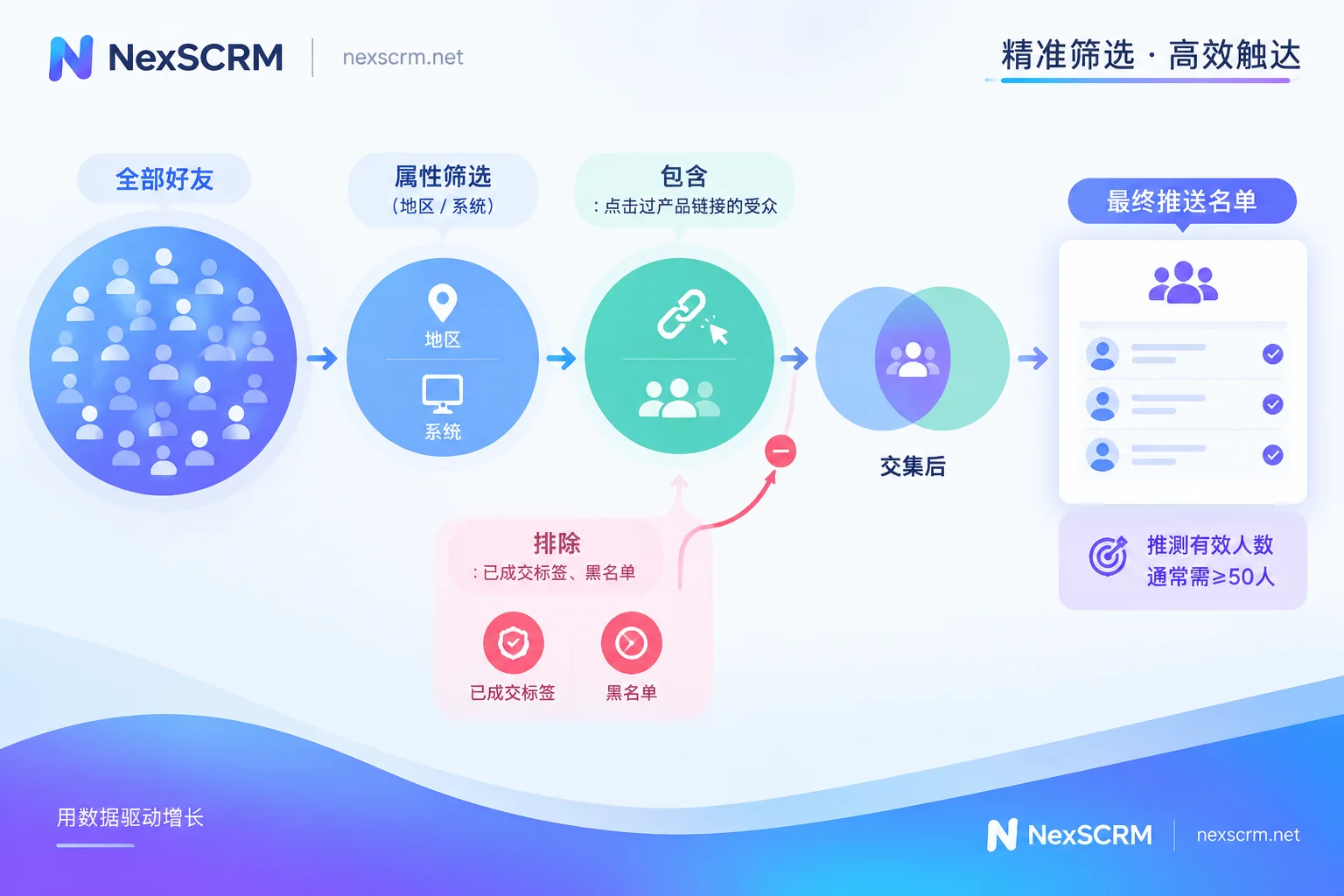
Some common combinations:
- New product follow-up: Include "clicked previous product link", exclude "purchased" and "blacklist / do not push" tags.
- Re-engage "saw but didn't click" people: Include impression audience of a message, exclude click audience of the same message.
- Post-exhibition follow-up: Include "joined via exhibition QR code" path audience, exclude "already quoted" tag to avoid sending introductory materials again.
- Website interest: Include "viewed a product page" website traffic audience, exclude "purchased".
Step 4: Look at the estimated count. If it's below 50, first remove the least critical attribute condition, such as age bracket, rather than relaxing exclude conditions. Better to have fewer people than to let existing customers receive new-customer offers.
Step 5: After sending, the clicks and impressions from this message can become the audience for the next round. Each send accumulates a list for the next segmentation, so links in broadcasts should be separated by product or topic—don't just put one generic homepage link in a message.
For More Precision, Label Business Stages in Chats
Estimated attributes like age and gender cannot reflect customers' real purchase needs and transaction stages. The information that truly determines "whether this person should receive this message" mostly lies in one-on-one chats between customer service and sales—such as which category the customer asked about, whether a quote has been given, or whether an order has been placed. Therefore, the most worthwhile investment is a unified set of chat tags:
- Group by dimension: one group for intended category, one for stage (inquired / quoted / sampling / purchased), one for status (no current need / do not push);
- Stages within the same group are mutually exclusive: when a customer moves from "quoted" to "sampling", remove the old tag, otherwise include and exclude will conflict;
- Prioritize maintaining exclude tags: failing to apply "purchased" or "do not push" in time is worse than missing an intent tag;
- Everyone uses the same naming convention: if different agents write different things ("quoted", "quote done", "quoted" mixed), audiences built will miss people.
Many foreign trade teams do not complete one-on-one follow-ups all in the official account backend; several salespeople may use their own accounts, or even the same customer communicates on different platforms, so stage information is scattered across individual chats. In NexSCRM, you can build customer profiles, apply tags, and set follow-up reminders for contacts in the same workspace, use contact deduplication to reduce duplicate profiles for the same customer, and chat context remains during handovers, so the team can have a consistent judgment of "who is at which stage." It should be noted that these tags are used for managing follow-ups in NexSCRM; to use them for segmented broadcasts on the official account, you still need to mark them in the official account backend's chat tags using the same tag definitions, or build lists through the audience feature. For specific usage of tags and profiles, see Customer Profiles, Deduplication, and Scripts.
Can't Send or Sent Incorrectly? Check These Areas
- Prompt says insufficient count: estimated effective count is below 50, reduce conditions as in Step 4 above.
- New friends not in the list: attribute data may have up to a 3-day delay; for new friends, use join path audience or directly use a welcome message.
- Purchased customers still received it: check whether the "purchased" tag was applied in time and whether the exclude condition was actually added to this message.
- Blocks still rising after segmentation: the problem may be sending frequency or content itself, not the list. You can check What Causes High LINE Block Rate item by item; personal accounts and official accounts also have different broadcast rules, see Will LINE Broadcast Messages Be Blocked.
In summary, attributes narrow the scope, audiences pinpoint people, exclude conditions block those who shouldn't receive it, and chat tags determine how precise this combination can be.


Comments(0)