 NexScrm官方博客
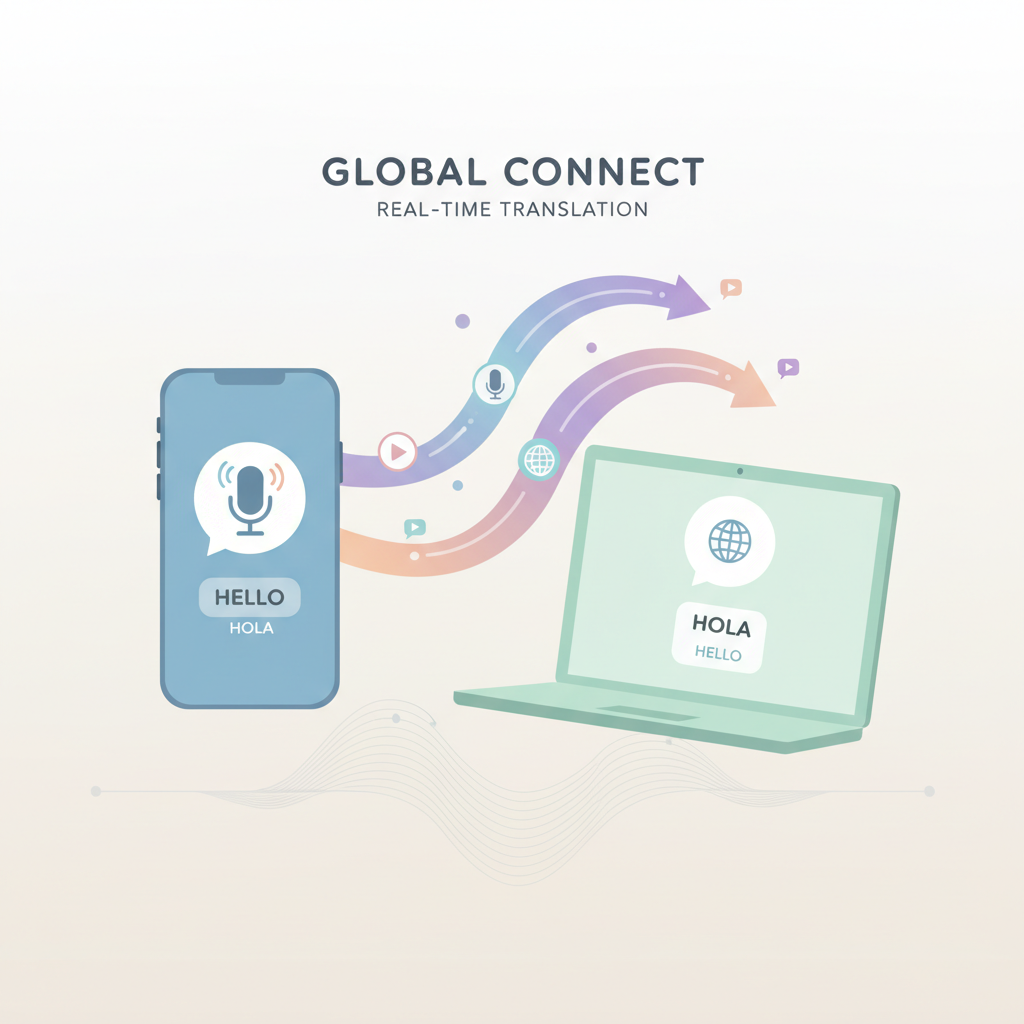
In today's increasingly globalized business environment, WhatsApp has become a vital tool for companies communicating with international clients. However, language barriers often lead to misunderstandings, hinder collaboration efficiency, and even result in missed opportunities. A simple "translate" function is no longer sufficient for high-frequency, real-time communication. Two-way real-time translation—the ability to instantly translate messages both sent and received within the chat—has become a major challenge for cross-border businesses, teams, and individual users.
This article will detail how to achieve efficient two-way real-time translation on WhatsApp mobile and desktop, helping you choose the best solution.
Two-Way Real-Time Translation on WhatsApp Mobile
Mobile is the primary daily-use scenario. The following two methods can be combined to create a nearly complete two-way loop.
1. WhatsApp Native Translation (Receiving Message Translation)
WhatsApp has introduced a built-in message translation feature for Android/iOS users, supporting one-on-one chats, groups, and channel messages.
Steps:
- Ensure WhatsApp is updated to the latest version (check App Store / Google Play for updates).
- Open any chat, and long-press (tap and hold) a foreign language message.
- From the pop-up menu, select "More options" > "Translate."
- Choose the source and target languages; the translation will appear immediately below the message.
- Android users can additionally enable "Auto-translate entire conversation" in chat settings, automatically translating all received messages into your preferred language.
2. Gboard Keyboard (Sending Message Translation)
To achieve real-time translation when sending messages, the simplest and most effective tool is the Google Gboard keyboard, which features built-in inline translation and works on both Android and iOS.
Setup and Usage Steps:
- Download and install Gboard (Google Keyboard) and set it as your default keyboard.
- In the WhatsApp chat interface, tap the input field to bring up Gboard.
- Tap the "More" icon in the toolbar above the keyboard > select "Translate."
- Set "From [language]" to "To [language]."
- Type your message in your native language; Gboard will automatically translate it into the target language.
- Confirm and send; the recipient will receive the message in the foreign language.
Mobile Summary: Combining WhatsApp native (receiving) + Gboard (sending) allows basic two-way translation on your phone. However, the process is not automatic—it requires manual translation taps, and receiving and sending are separate operations, making the translation experience disjointed and cumbersome in fast-paced business conversations.
Two-Way Real-Time Translation on WhatsApp Desktop
Desktop has no built-in translation, but the following solutions enable full two-way translation:
1. Chrome/Edge Browser Extension (WhatsApp Web)
Several translation plugins designed specifically for WhatsApp Web are available in the Chrome/Edge Web Store, supporting automatic real-time translation of both received and sent messages, such as WhatsApp™ Auto Translate.
Steps:
- Search for "WhatsApp™ Auto Translate" in the Chrome/Edge Web Store and install the extension.
- Open web.whatsapp.com and scan the QR code to log in.
- Enter the translation settings interface: enable both receive and send translation, and select the target language.
- Receiving messages: automatically translated into your preferred language (displayed below the original).
- Sending messages: type in Chinese; the extension translates in real-time before sending.
Pros: Easy to install, supports 200+ languages; almost seamless in auto mode; free.
Limitations: Only works on WhatsApp Web.
2. Using NexScrm for Real-Time + Automatic + Two-Way Translation (Windows/Mac)
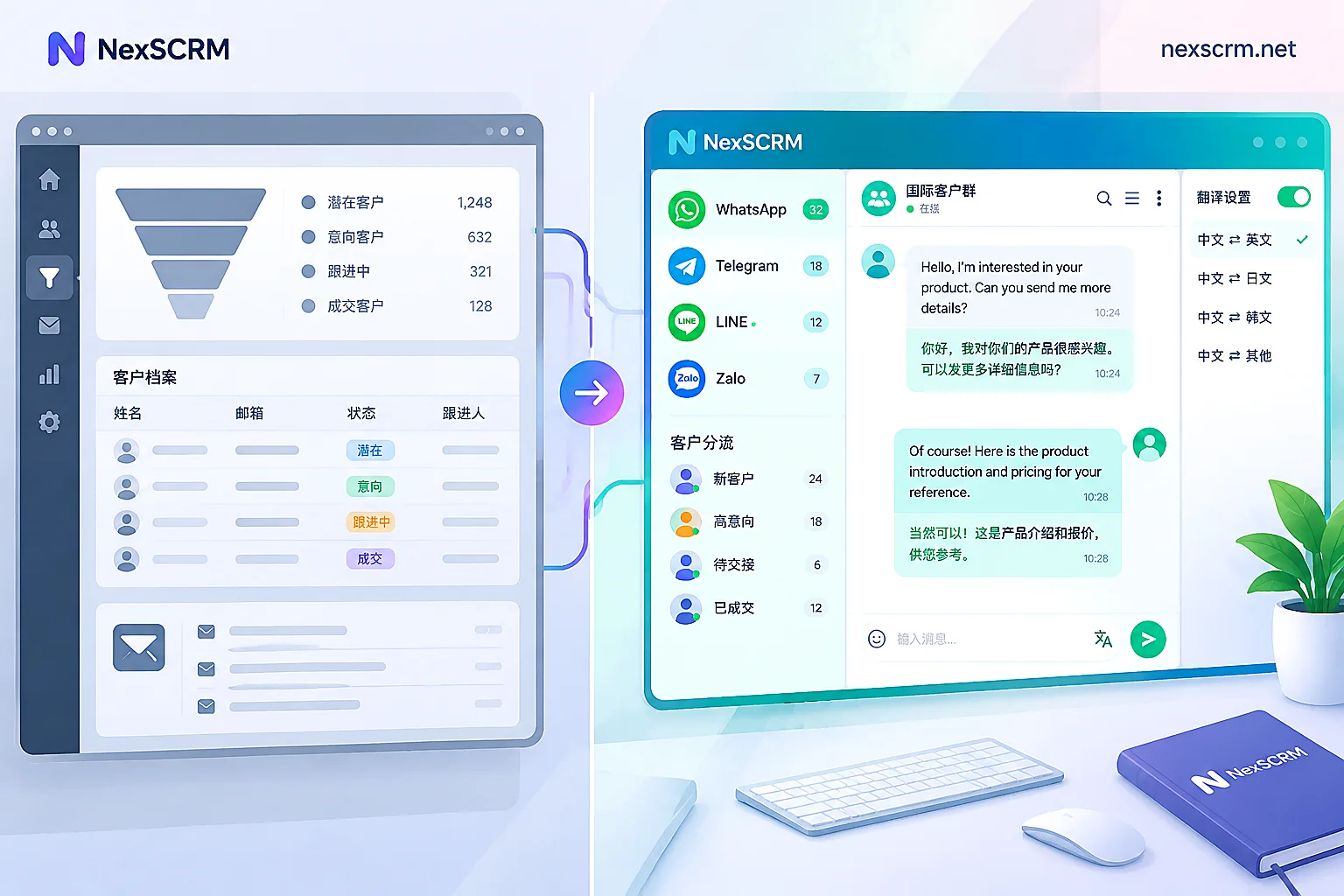
For cross-border businesses, teams, or high-frequency users, NexScrm offers a more stable and professional solution. As a desktop client designed to enhance WhatsApp, it delivers true two-way real-time automatic translation:
- Sending: You type in your mother tongue; upon sending, the recipient automatically receives the message translated into their language.
- Receiving: Messages from the other party are automatically translated into your mother tongue and displayed directly in the chat.
No extra clicks, copy-pasting, or page refreshes are required—the communication experience is as smooth as chatting with a native-speaking customer.
Steps:
- Download and install NexScrm:
① Download the desktop app from the NexScrm official website (supports Windows/Mac).
② After installation, scan the WhatsApp Web QR code to log into your account. - Complete translation settings:
① Global translation settings: In the [Settings] page under [Translation Settings], enable [Auto-receive translation] and [Auto-send translation], then set the [Translation route] and [Translation language]. Newly logged-in accounts will use these global settings as defaults.
② Chat translation settings: Select a chat from an account, then find [Translation settings] in the right sidebar. Here, you can set a global translation route (default Google) per platform. Based on the customer's language, customer service or sales staff can toggle individual translation switches to set a specific language for each customer.
Chat translation settings
- Translation messages: Received foreign language messages are automatically translated into Chinese; typing Chinese automatically translates into the recipient's language.
Advantages:
- Auto language detection: No need to manually select the source language—the system detects the customer's language in seconds and automatically displays the translation in the chat window.
- Multiple translation engines: Integrates 11 major translation engines, including GPT-4o mini, Claude 3 Haiku, Gemini 1.5, Google, Microsoft, DeepL, etc., giving you the flexibility to choose.
- Multi-format translation support: In addition to plain text, supports voice message transcription + translation; text recognition and translation in images/documents.
- Multi-account translation: Supports multiple WhatsApp accounts, each with independent language/engine settings.
Summary: Choose the Best Solution Based on Your Scenario
- Light personal use → Mobile: WhatsApp native translation (receive) + Gboard (send) combination; Desktop: free Chrome extension.
- Cross-border businesses, teams, high-frequency cross-border communication: Prioritize NexScrm for true zero-latency two-way automatic translation, significantly improving professional efficiency and customer experience.