 NexScrm官方博客
Direct answer: LINE's official client currently has no automatic two-way translation for entire conversations. Although the desktop version (Windows / Mac) has built-in translation, it only allows you to right-click on a single message and manually view the translation in a pop-up. It does not automatically display translations in the message stream, nor can it automatically translate the Chinese you type into a foreign language and send it. At the same time, LINE does not have a regular web version that can run directly in a normal browser tab, so most web translation plugins will fail on LINE or simply cannot find the window.
If you regularly communicate with clients in Japan, Taiwan, Thailand, or Southeast Asia, and you don't want to copy each message to Google Translate, nor do you want to add a "third-party translation bot" to the client chat room where it spams messages, the most reliable approach is to switch to a desktop workbench with built-in translation (such as NexSCRM)—the translation is only displayed on the customer service agent's own screen, and what is sent out is pure target language. The client never sees any bot.
First, Understand the Current Situation: Where Exactly Does LINE's Built-in Translation Fall Short?
Many newcomers to overseas LINE customer service follow old online tutorials to find the "automatic translation switch" but can never find it. This is usually because they mistake single-message manual translation for automatic conversation translation. In actual use, the native solution has three unavoidable limitations:
- Desktop version only supports right-click "single message, one-way" viewing
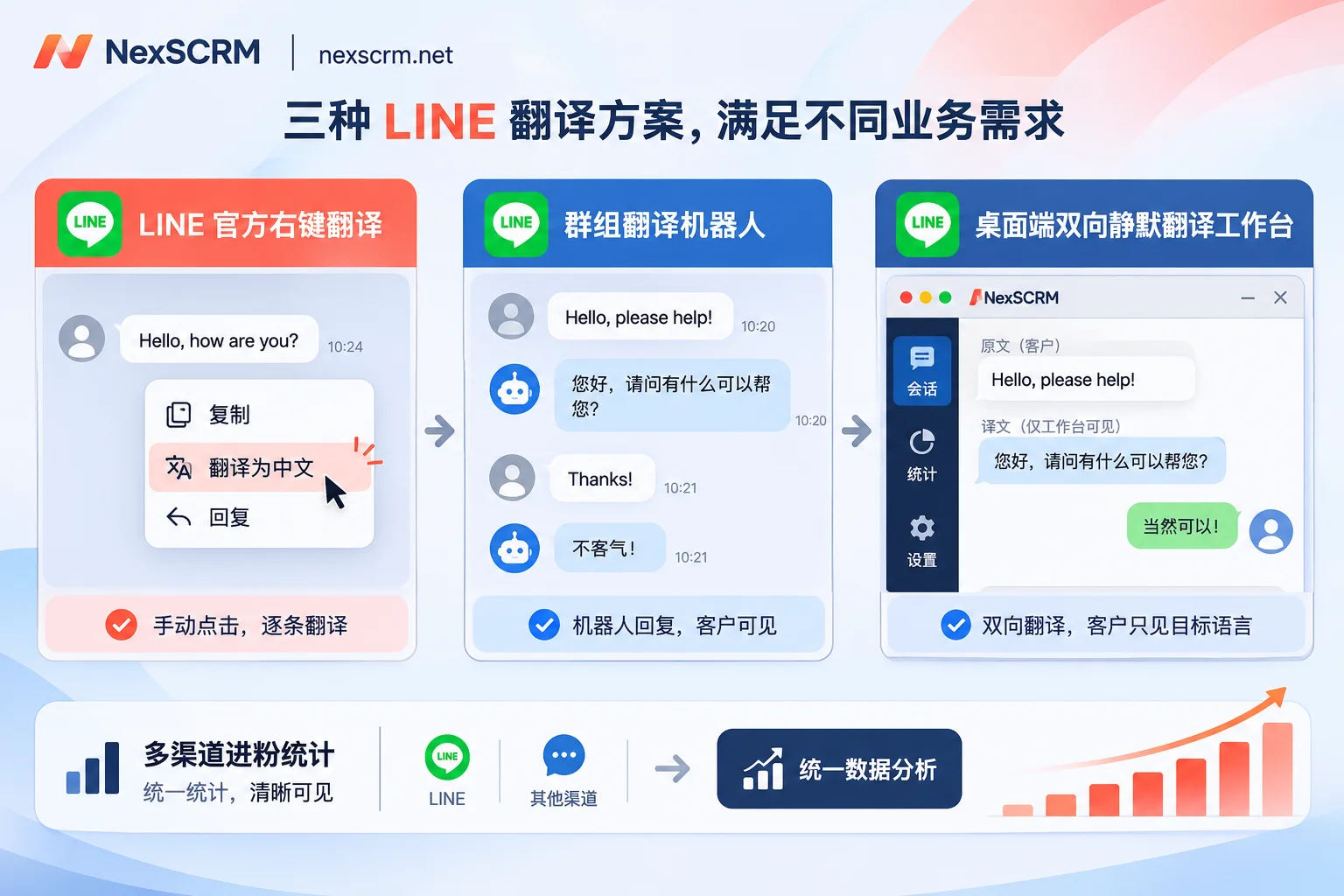
According to LINE's official help center, the Windows and Mac desktop versions support right-clicking on a foreign-language message in the chat window and selecting "Translate," then manually confirming or detecting the language to view the result. This is manageable when a client occasionally sends a sentence, but when a Japanese or Thai buyer sends five or six consecutive messages with product specifications, delivery dates, and price negotiations, right-clicking each one not only interrupts the flow but also makes it easy to miss additional conditions in between. More importantly, it does not solve the problem of "how to translate my Chinese reply." - No regular web version, so browser translation plugins cannot attach
Many teams are used to installing word-selection or automatic translation plugins for WhatsApp Web in Chrome, but LINE's product form is mainly mobile apps, standalone desktop clients, and a dedicated Chrome extension—there is no open entry point for a regular web tab. Without a standard web DOM structure, third-party browser translation plugins naturally cannot automatically identify and inject translations. - Official translation accounts have incomplete language support and cannot directly translate voice messages
LINE launched official accounts such as "LINE Chinese-English Translation," "LINE Chinese-Japanese Translation," and "LINE Chinese-Korean Translation" in the early days. These essentially send text to the official account and get a translation back. They lack many languages commonly used in Southeast Asian markets, such as Thai, Vietnamese, and Indonesian, and cannot directly handle voice messages sent by clients.
Why Do Customer Service Teams Want to Remove Translation Bots After Two Days?
Since the official solution is not great, many people's second reaction is to find a third-party LINE translation bot (such as common group translation bots), add it as a friend, and invite it into the conversation for automatic translation.
This approach works well in internal multilingual collaboration groups (e.g., factory teams, overseas construction sites, or tourist charter groups) because all group members know the bot is present and everyone can simply read the translations scrolling in the group. However, once it is used in 1-on-1 foreign trade inquiries or cross-border e-commerce customer service, the drawbacks immediately become apparent:
- Severe chat spam: For every sentence spoken, the bot follows with a translation, turning a 10-round price negotiation into 20+ messages back and forth, making it very painful to review order details later.
- Awkward and concerning for clients: When communicating one-on-one with overseas buyers, suddenly adding a third-party bot to the chat or creating a three-person group can easily make clients wonder, "Why does my message have to go through a third-party bot?" This is especially likely to affect trust when discussing prices, payment methods, or after-sales privacy.
- Quotas and commands easily interrupted: Many bots, once accidentally kicked from the group, overridden by later commands, or when the daily free character quota is exhausted, will have breakpoints like "working in the morning but suddenly unresponsive in the afternoon," affecting first-response timeliness.
How to Achieve Automatic Two-Way Translation on LINE Desktop Without Adding a Bot to the Group?
To satisfy both "automatic two-way translation" and "not disturbing the client," the core idea is to keep the translation action within the customer service agent's own desktop workbench, rather than stuffing a translation tool into the chat room.
In actual business, you can choose a LINE translation software that supports silent two-way translation—for example, the cross-language social SCRM desktop client NexSCRM (currently offers a Windows client with a limited-time free trial and no credit card required; the macOS client is marked as "coming soon" on the official download page). It integrates translation directly into the local client and does not rely on any browser plugin. Here are four steps to implement it:
1. Log in to LINE accounts from multiple devices in one place
After logging in to one or more LINE accounts in the NexSCRM workbench, the login state is automatically saved, so you don't need to scan the QR code with your phone every time you restart the software. Each account runs in an independent fingerprint environment and can be bound to a session-level proxy IP separately, avoiding interference when team members switch between multiple accounts on the same computer.
2. Enable silent two-way translation and lock the language to each contact
After turning on automatic translation in the chat window, Japanese, Thai, Korean, or English messages from clients will automatically generate a Chinese translation below the original sentence, with both the original and translation preserved; when you type Chinese in the input box and send, the system automatically translates it into the other party's language and sends it, so the client only sees a clean foreign-language message.
If one LINE account needs to serve Japanese, Thai, and Western buyers at the same time, you can enable automatic language detection or lock the translation language for each contact individually, saving you from frequently changing settings or sending the wrong language when switching between clients (for specific ideas, see how to avoid language mix-ups when serving clients from multiple countries with one account).
3. Switch translation engines by scenario and double-check before discussing prices
NexSCRM has multiple built-in translation engines: Google, Microsoft, DeepL, and AI large models, which can be switched at any time in the interface. For daily greetings and confirming logistics progress, use a general engine for speed; once you enter unit price quotes, minimum order quantities, payment terms, or honorific communication that Japanese clients particularly care about, it is recommended to switch to an engine that produces more natural expressions and has more stable context understanding, and scan the translation before sending (for engine selection details, see which translation engine to use for daily reception and price negotiation).
4. Cover the blind spots of image and voice message translation
In retail or wholesale, clients often send a product screenshot with Japanese/Thai specifications or a quick voice message of tens of seconds while driving. NexSCRM supports translation of text, images, and voice messages (image and voice translation features are available by version; please refer to the official version notes for details). You no longer need to screenshot, export, and OCR as before, nor do you need to play voice messages aloud for phone dictation (for extended practice, see can clients' voice messages be directly translated into Chinese).
Two Team Issues Also Managed Along the Way
Many teams initially just want to solve "how to auto-translate on LINE," but later realize that a translation plugin alone is not enough: if the team uses LINE, WhatsApp, and Zalo simultaneously, messages are scattered across multiple windows and easy to miss; or when a customer service agent leaves, the chat history and customer tags on their phone go with them. With NexSCRM's multi-platform aggregation workbench, cloud backup of chat history, customer profile tags, quick reply templates, and sensitive behavior monitoring (such as privately adding contact information or private payment reminders), you can solve translation and customer asset accumulation in one workflow.
How to Choose a LINE Translation Solution for Different Scenarios?
| Scenario | Recommended Solution | Advantages | Main Limitations |
|---|---|---|---|
| Occasionally chat with overseas friends | LINE desktop right-click translation / mobile long-press | Free, no need to install other tools | Manual per-message clicking, cannot automatically translate replies into foreign languages |
| Internal multilingual groups for factories, construction, or tourism | Third-party LINE group translation bots | All group members can see multilingual translations | Spams the chat room directly, not suitable for 1-on-1 client reception |
| Cross-border customer service, foreign trade quotes, multi-account teams | Desktop two-way translation workbenches like NexSCRM | Silent two-way translation, preserves original text, multiple engines and multi-account aggregation | Requires installing Windows desktop client; features and character packs vary by official version and plan |
Action advice: If you only see three to five foreign-language messages on LINE each day, continuing to use the desktop right-click translation is sufficient. But if your team frequently handles inquiries from Japanese, Taiwanese, or Southeast Asian clients on LINE, it is recommended to first visit the NexSCRM translation feature page to learn about supported engines and version differences, then apply for a limited-time free trial to test a few real client conversations. It is much less hassle than continuing to manually copy or use group bots.