 NexScrm官方博客
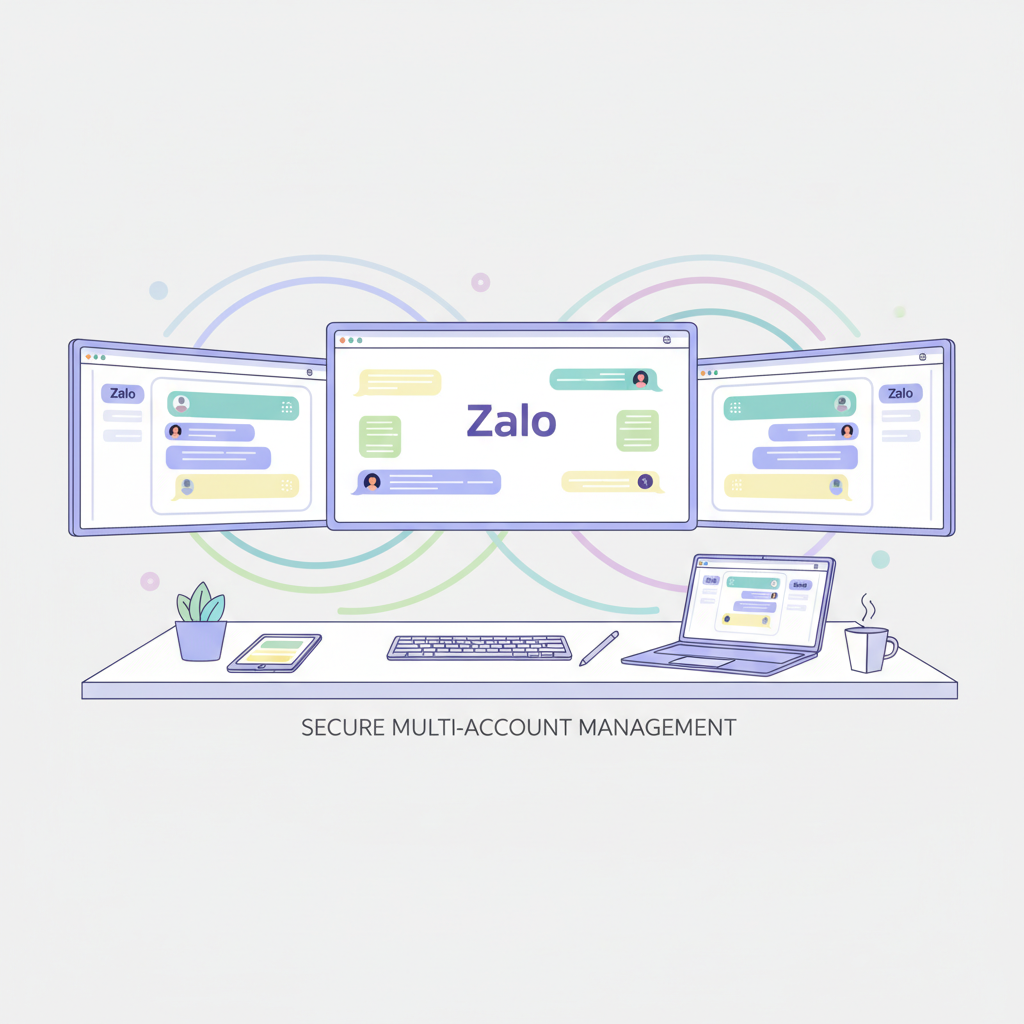
Foreign trade professionals delving into the Vietnamese market often find managing multiple Zalo accounts a headache. Different clients from different countries, businesses, and product lines require separate accounts, often reaching dozens or even hundreds. Switching between logins, missing messages, losing customers—these pain points pose a huge challenge. How can you simultaneously manage hundreds of accounts and maintain efficient communication with all clients?
This article provides a practical Zalo multi-account software recommendation to help foreign trade professionals securely and efficiently manage multiple Zalo accounts on the same device.
Main Challenges of Managing Multiple Zalo Accounts
Although multiple accounts are a necessity for foreign trade professionals, traditional browser-based account management often leads to the following issues:
- Account conflicts: Ordinary browsers cannot log into multiple Zalo accounts simultaneously, requiring frequent switching.
- Environment anomalies: Cross-border logins may be flagged as risky due to IP anomalies or device fingerprint anomalies.
- Data security risks: If account environments are not isolated, multiple accounts can be linked by the platform, increasing the risk of bans.
- Low operational efficiency: Frequent switching between accounts consumes significant time and manpower.
How Can Foreign Trade Professionals Efficiently Manage Multiple Accounts? Recommended Zalo Multi-Account Software
To address these difficulties, specialized Zalo multi-account management tools like NexScrm have emerged, effectively solving many pain points in multi-account operations and enabling more efficient and secure Zalo multi-instance management. Overall, using Zalo multi-account tools offers the following advantages:
Multi-account parallel management: Simultaneously manage tens or even hundreds of accounts from one computer, with all messages centralized on a single interface. Foreign trade professionals can promptly view new messages from each account and reply quickly, handling multiple conversations in one window, greatly simplifying the management process and saving labor costs.
Device fingerprint isolation: Simulate different fingerprint environments (operating system, Canvas fingerprint, font list, screen resolution, etc.).
Independent Fingerprint Environment
Independent cookie storage: Each account retains its own login state and cache.
Multi-IP support: Combine with proxy network configurations to simulate IP addresses from different countries for each account, enhancing anonymity and security.
Automation and batch operations: Support scheduled tasks and batch operations. For example, foreign trade professionals can set different accounts to automatically send messages or intelligently reply to customers in their respective time zones, enabling 24/7 multi-account collaboration without manual intervention.
How to Achieve Zalo Multi-Instance Management via NexScrm?
Step 1: Download and Register Account
Visit the NexScrm official registration page.
Register your NexScrm account using your email.
Download the NexScrm client and log in with your registered account.
Step 2: Create a Fingerprint Environment
Enter the client main interface and click "New Session" > "Fingerprint Configuration".
In the proxy settings, bind different proxy IPs, ensuring the timezone matches the proxy location.
Keep the environment fingerprint automatically generated by NexScrm (including User-Agent, resolution, Canvas, etc.) to ensure each environment is unique.
Step 3: Start and Log into Zalo
Start the session and scan the QR code to log into your Zalo account. Once scanned, your Zalo account is logged into NexScrm. Using the same method, you can repeatedly add multiple accounts. All logged-in accounts will appear sequentially in the left sidebar.
Step 4: Group and Set Accounts
If you have many accounts, use NexScrm's grouping feature to categorize them.
Step 5: Daily Message Sending and Receiving
After adding accounts, you can send and receive messages just like using Zalo! Click any account avatar on the left; the chat list and messages will appear in the middle chat pane. You can directly type text, send images, or attachments to communicate with contacts. Messages from multiple accounts are synchronized in parallel, so no matter how many accounts are online, you won't miss any client messages.
Step 6: Use Advanced Features
While communicating with clients, don't forget to use NexScrm's various auxiliary features to improve efficiency, including: mass messaging, real-time automatic translation, auto-reply, quick replies, CRM customer management, team lead allocation, customer/group member/chat backup, and many more comprehensive features.
For foreign trade professionals eager to expand in the Southeast Asian market, NexScrm offers a secure, efficient, and controllable multi-account management solution, freeing you from tedious account switching. It allows you to focus more on genuine client communication and business expansion, ultimately achieving the ultimate goal of "easily managing hundreds of accounts," ensuring worry-free growth in foreign trade business.